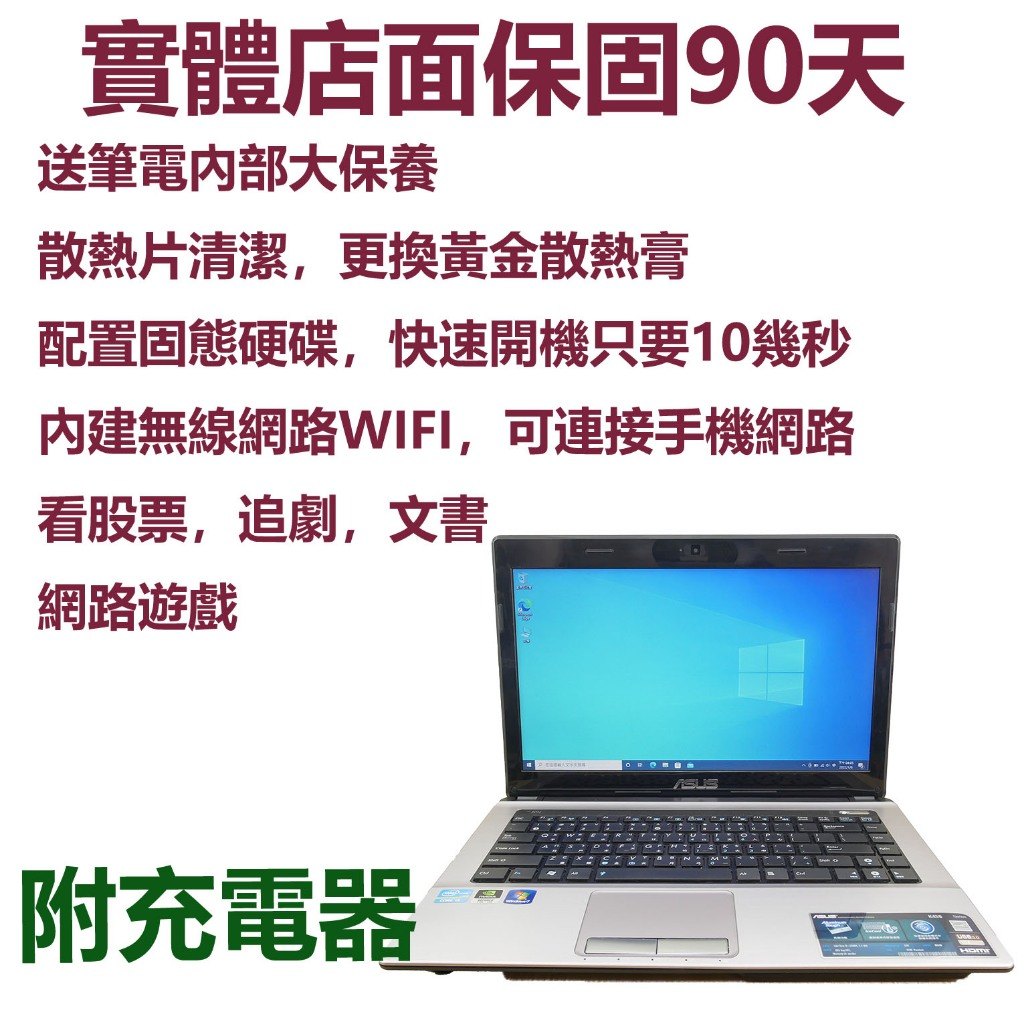

二手筆電第一次開機怎麼做:Win10設定到散熱檢查的完整流程
✅ 你買的是一台經過內部清潔整新、搭配 Windows 10 與 SSD 的二手筆電。接下來最重要的是:用對設定,讓「快」與「穩」更容易被你感受到。
 Step 1:開機後先做 3 件事(讓系統更順)📌
- 更新 Windows:先把系統更新到最新,避免驅動/相容性問題。
- 確認儲存空間:SSD容量有限時,先清理不必要的預裝檔案,保留空間讓系統更順。
- 設定登入與隱私:把不需要的背景同步關掉,減少開機後的資源占用。
Step 2:省電設定與電池管理(延長你能用的時間)
本商品電池屬於消耗品,實際續航會依使用情境而不同。你可以用以下方式讓續航更可控:
- 控制螢幕亮度:亮度越高耗電越快
- 選擇「平衡/省電」電源模式
- 不使用時關閉不必要的藍牙/定位
Step 3:散熱觀察(避免用久變慢)
本商品強調內部清潔整新與散熱膏更新,目的就是讓長時間使用更穩。你可以用「簡單觀察」確認狀況:
- 連續看影片 30 分鐘:觸感是否過熱、風扇是否異常大聲
- 多工切換:是否出現明顯卡頓或延遲
- 放置方式:避免把出風口貼牆或蓋住
 Step 4:SSD最佳化小技巧(讓開機與啟動更快)💡
SSD不需要你做太多「高難度操作」,但以下習慣能讓體感更好:
- 避免把大量檔案直接塞滿系統碟
- 移除開機自啟動的多餘程式
- 定期清理暫存與下載資料夾
FAQ:新手最常卡住的 4 個問題
Q1:我需要先裝哪些軟體?
建議先裝你最常用的:瀏覽器、文件工具、影音播放器。之後再裝遊戲/模擬器,避免一開始就塞太多。
Q2:SSD容量會不會不夠?
會的機率取決於你裝了多少軟體與存了多少檔案。若你常下載影片/大型遊戲,建議把資料移到外接或雲端。
Q3:電池續航怎麼抓比較準?
用你實際的亮度與用途測一次最準。電池為消耗品,續航會隨時間與使用方式變動。
Q4:散熱不舒服要怎麼處理?
先確認出風口是否被阻擋,再降低亮度與背景程式。若仍異常,建議回到原廠/店家評估。
English Version
First-Time Setup for a Refurbished Laptop: A Complete Win10 Checklist (Power Saving + Cooling Check)
After buying a refurbished laptop, the biggest difference often comes from setup—not hardware. This article gives a step-by-step Win10 first-boot routine: power saving, cooling observation, SSD-friendly habits, and a simple software install order.
1) The 3 things to do right after boot
Update Windows, check available SSD space, and adjust privacy/background sync to reduce unnecessary resource usage.
2) Power saving settings for real battery life
Use a balanced/power-saving plan, lower screen brightness, and disable Bluetooth/location when not needed. Since battery is consumable, your usage pattern matters.
3) Cooling check in everyday workloads
Even with refreshed thermal paste, you should observe fan noise and heat during a 30-minute streaming test and ensure vents are not blocked.
4) SSD-friendly habits that keep the laptop feeling fast
Avoid filling the system drive, remove unnecessary startup apps, and regularly clear temporary/download files.